Figma to WordPress: What the Conversion Process Actually Involves (and What It Costs)
Intro
A Figma design is a picture of your website. A WordPress site is a working thing: pages you can edit, forms that send emails, a menu that works on a phone.
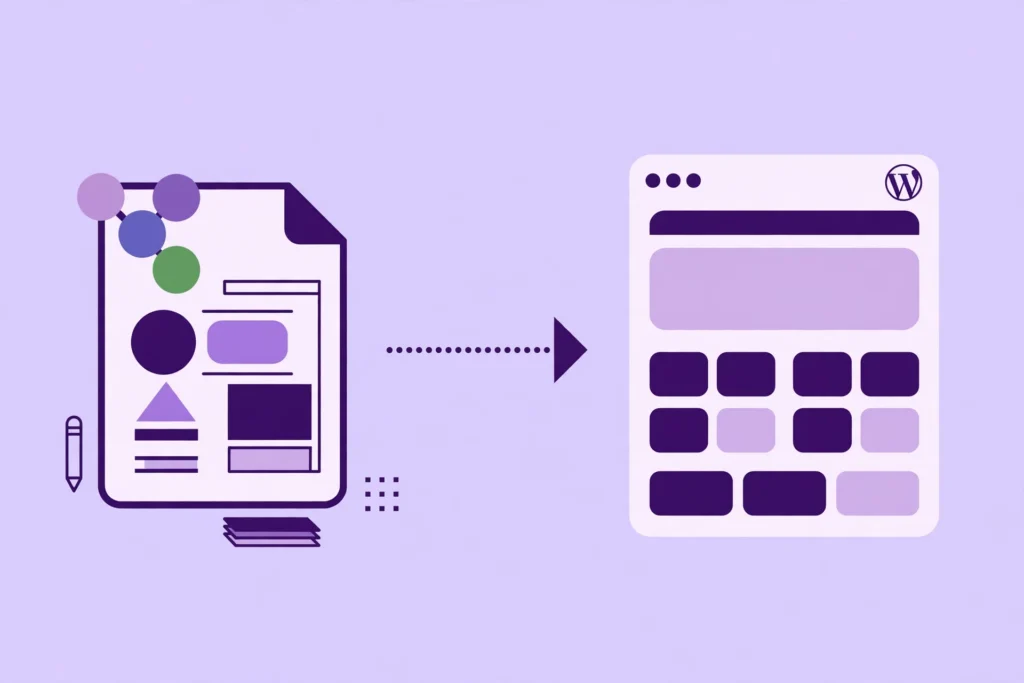
There is no import button for a Figma to WordPress conversion. Conversion means rebuilding your design inside WordPress, page by page, so it looks the same and works properly.
This guide explains what that process actually involves, what it costs, and what to send your developer so you get an accurate quote.
Some links here are affiliate links. If you buy through them, I may earn a commission at no extra cost to you.
Why there is no import button
Figma and WordPress do two different jobs. Figma draws layouts. WordPress runs a live site with content, users, plugins, and a database.
A Figma to WordPress conversion is a rebuild, not a file transfer. Your developer looks at the design, then builds each section in WordPress using a builder like Elementor or Divi, sets up the global styles (fonts, colours, buttons), and makes sure every page works on a phone and a desktop.
That is why quotes are usually per page, not per design file. A 20-page design is a bigger rebuild than a 5-page one, even if both look simple in Figma.
The process step by step
Here is how I handle a Figma to WordPress conversion, from first look to handover:
1. Design review. I go through the Figma file page by page and note what is there: how many pages, which sections repeat, what moves or changes on hover, and anything that needs a plugin or custom work. This is where surprises get caught early.
2. Global styles. Fonts, colours, button styles, and heading sizes are set up once, so every page matches. This is what keeps the finished site looking like one site instead of a set of separate pages.
3. Page builds. Each page is built in Elementor or Divi, section by section, following the design. Headers and footers are built once as templates and used across the whole site.
4. Responsive testing. Every page is checked on a phone, a tablet, and a desktop. Figma designs are usually drawn for desktop, so the mobile layout is where most of the real decisions happen.
5. Forms and extras. Contact forms, popups, maps, and any other working parts are connected and tested. A form that looks right but never sends an email is not finished.
6. Handover. You get the logins and a short walkthrough, so you can edit text, photos, and pages yourself afterwards.
What it costs
Published guides from conversion specialists put freelancer per-page rates at roughly $100 to $300 per page. That is market data, not my price.
What moves the price inside that range:
- Number of pages. More pages, more build time. It is that simple.
- Complexity. A simple text page costs less than a page with sliders, tabs, animations, or custom layouts.
- Interactions. Hover effects, sticky sections, and animations take extra time to build properly.
- Extras. A shop, a booking form, a member area, or anything beyond normal pages adds to the quote.
- Mobile work. If the Figma file has no mobile designs, your developer has to make those decisions, and that takes time.
A fair quote for a Figma to WordPress conversion should be based on your actual Figma file, not a price list. If someone quotes you a fixed price without looking at the design, be careful.
What to send your developer for an accurate quote
To get a quote you can trust, send these four things:
- The Figma link. Make sure the developer can view it. A screenshot is not enough, because they need to see the layers, spacing, and exact sizes.
- The page count. How many unique pages, not counting repeated templates.
- The interactions. Anything that moves, slides, pops up, or changes on hover.
- Your deadline. When the site needs to be live, so the developer can tell you honestly whether that is realistic.
With those four things, a developer can give you a real quote instead of a guess.
Before launch: hosting and checks
A converted site still needs a home before it can go live. If your current hosting is slow or unreliable, the launch is a good moment to move. I recommend Hostinger for budget shared hosting.
Before launch, check these:
- Every page matches the Figma design on desktop and mobile
- Forms send emails to the right address
- The site loads fast on a phone
- Old URLs redirect properly if this is a redesign
- You have the logins, the files, and ownership of the finished site
The next step
If you have a Figma design and want a Figma to WordPress conversion to turn it into a working WordPress site, send me the Figma link and the page count. I will look at it and tell you honestly what the conversion would involve and what it would take.
Get in touch or book a free 30-minute consultation. You can also read about my WordPress Development service.